Remote Desktop Over Internet without static IP
Idea behind this technique is use a free tunneling service provide by ngrok.com and redirect all tcp packet to our local system by running a ngrok client in local system.since Remote Desktop service use tcp with port 3389 all the tcp packet arrive to ngrok will redirect to tcp of local host . and we can able to connect to rdp from internet.
Ngrok
ngrok is a cross-platform application that enables developers to expose a local development server to the Internet with minimal effort. The software makes your locally-hosted web server appear to be hosted on a subdomain of ngrok.com, meaning that no public IP or domain name on the local machine is needed.
Login to Remote Desktop via ngrok url.
After Login to ngrok and download client and start it using below command.

ngrok tcp 3389

once the client in local create a session a unique url was published in tunnels section in ngrok.com of your login. please find the screen shot below.

now you can able to login via Remote Desktop client .
Below we can login via Microsoft RD client for android.


Configure Ngrok
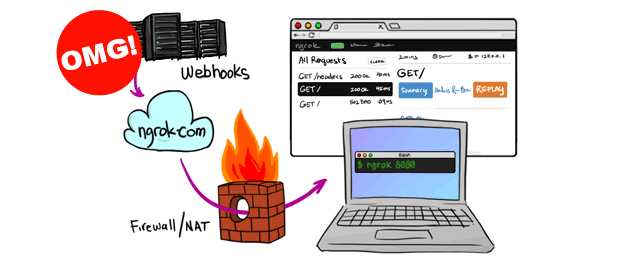
Webhooks are great! They are a perfect way for API services like Twilio to notify your application of events such as incoming calls or text messages. The one difficulty is that when you are developing an application that consumes webhooks you need a publicly accessible URL to configure the webhook service with. Typically you would develop on localhost and the rest of the world would have no access to your application, so how do you test your webhooks?
Well, that’s where comes in. ngrok is a free tool that allows us to tunnel from a public URL to our application running locally. Here’s my 6 favourite things about ngrok:
1. It’s really easy to install and use
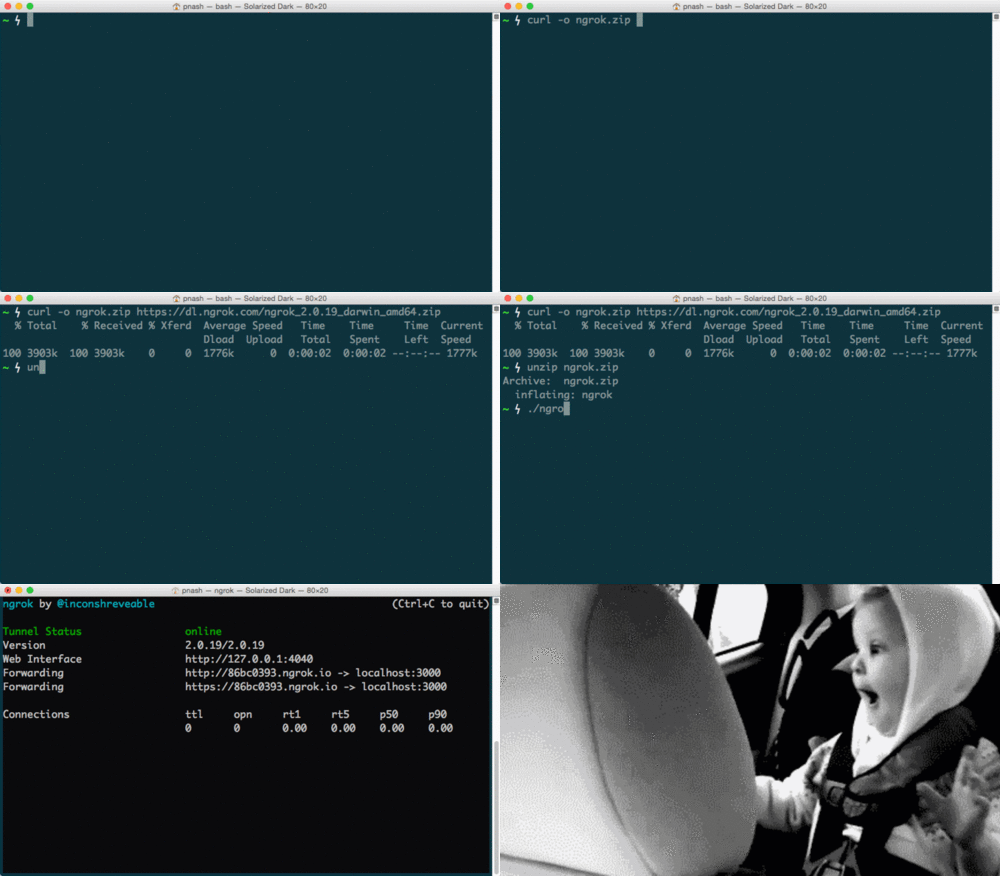
ngrok is built in Go so it is packaged as binaries for each major platform. To install ngrok do the following:
- Download the package for your system
- Unzip the package
- There is no step 3!
Well, there is no step 3 if you have a Mac or Linux, if you’re on Windows you might have a bit more work to do. Thankfully Devin’s got you covered with his post on .
Once you have ngrok installed, using it to tunnel to an application running on, say, port 3000 is as easy as:
$ ./ngrok http 3000
Bonus install tip!
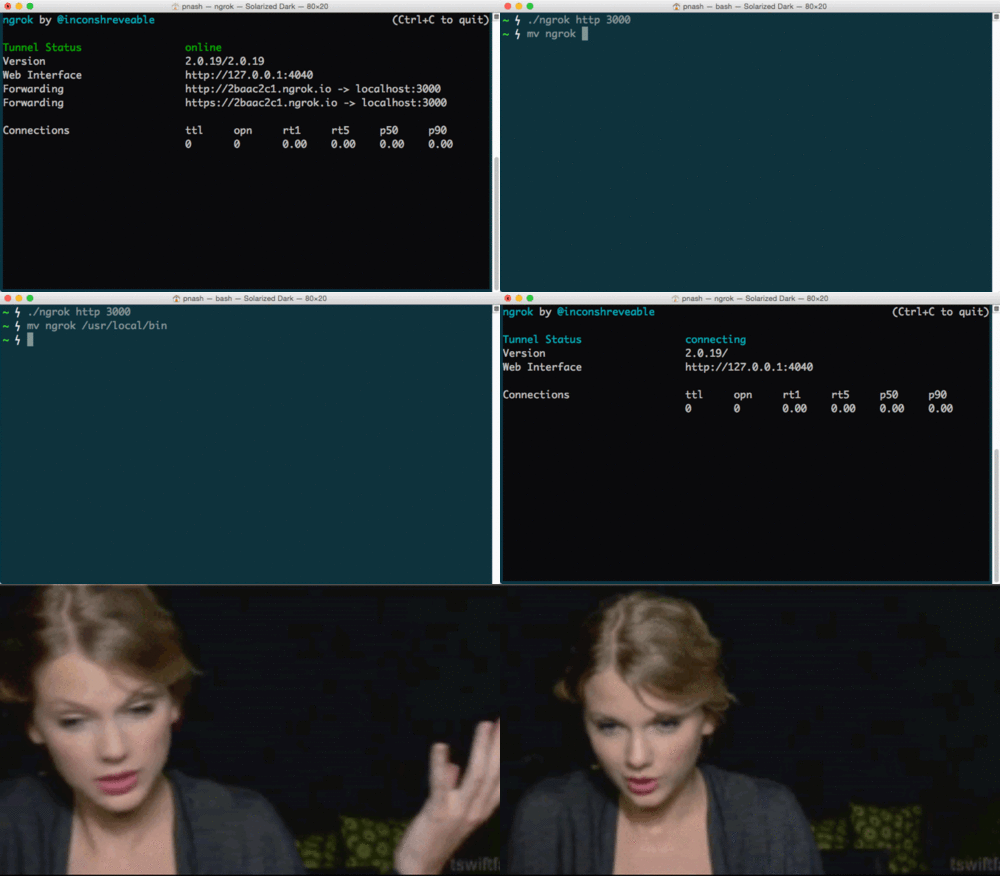
Once you’ve unzipped the ngrok executable move it to a folder that’s in your $PATH then you can run ngrok from anywhere you want on the command line by just typing:
$ ngrok http 3000
If you want a more in depth article on how to hook up ngrok with your Twilio apps, check out . Watch out though, as the commands have changed with the release of ngrok 2. You can follow the post, but substitute the syntax above to make sure it works.
2. It has a dashboard
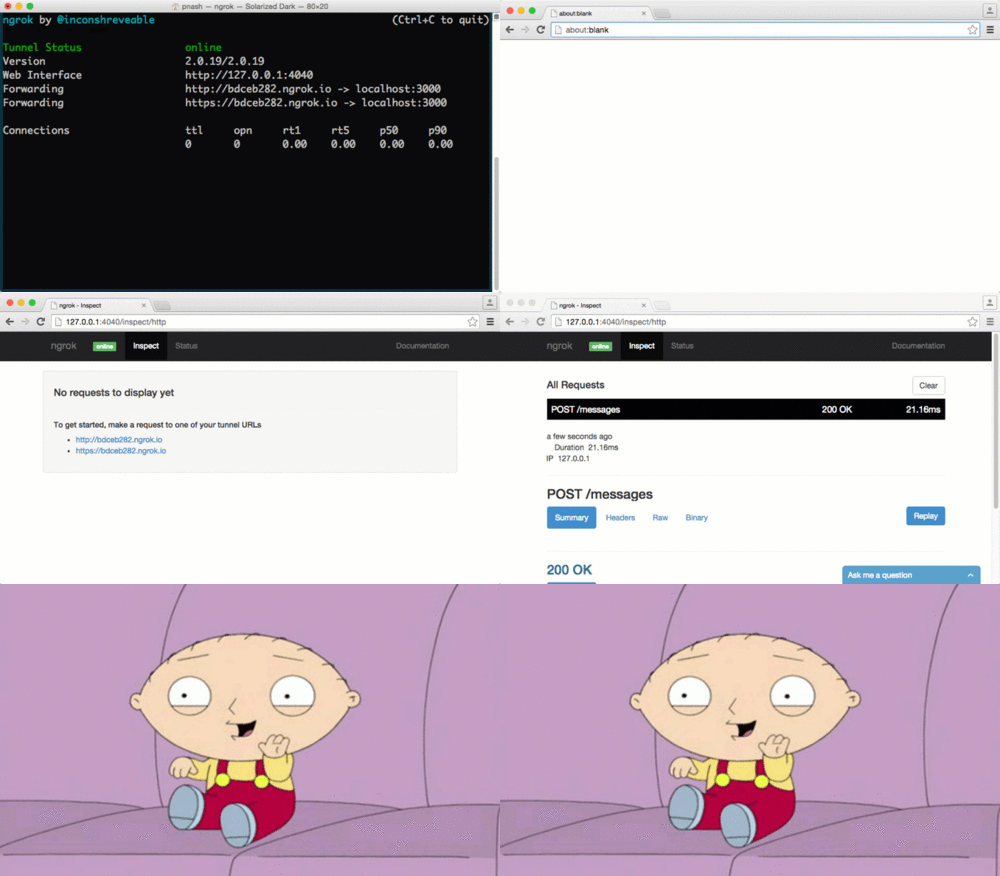
When you start up ngrok it shows you the URL you are tunnelling through and another local URL, . Open that up and gaze in wonder at the dashboard in front of you.
The dashboard allows you to see the status of your tunnel, the requests you have made through it and the responses that came back from your application. Great for debugging misfiring webhook endpoints.
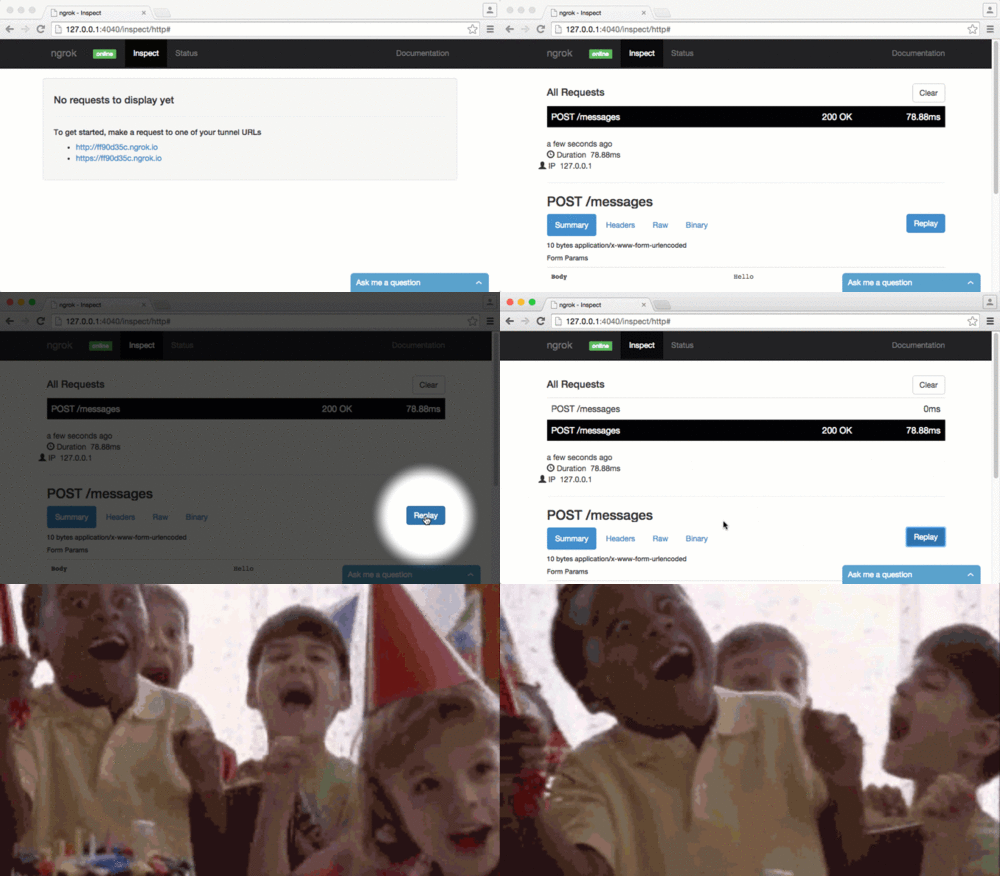
3. You can replay requests
Take a look again at that dashboard. Not only can you inspect requests that came through the ngrok tunnel, you can replay them.
Now when your SMS endpoint is misbehaving, rather than sending another message and then another message until you get it right, you can just replay the incoming request from the dashboard.
4. You can secure your tunnels
Worried about someone snooping on the super secret app you’re developing but still need to open a tunnel to check something? Stop worrying right now and check this out!
$ ngrok http -auth "user:password" 3000
Boom! Your tunnel is now protected using HTTP auth. Noone’s spying on your business!

Your style is so unique compared to other people I have read stuff from. Many thanks forposting when you have the opportunity, Guess I will just bookmark this site Debut Remote Computer Manager Enterprise
ReplyDelete
ReplyDeleteI am very impressed with your post because this post is very beneficial for me and provide a new knowledge…
windows-8-1-activator-crack-key
wise-data-recovery-crack-key
photo-mechanic-crack
idm-uestudio-crack-latest-version
enigma-recovery-crack-license-key
remote-desktop-manager-crack
ReplyDeleteVery good article! We will be linking to this particularly great post on our website. Keep up the good writing.
remote-desktop-manager-crack
window-12-pro-crack
rewasd-crack-plus-serial-key
poweriso-crack
router-scan-crack-latest
nexus-keygen-crack-latest